If you’ve spent time working on Linux, you’ve probably seen commands like:
source ~/.bashrc
or
. ./setup_env.sh
Many developers use these commands every day without fully understanding what they actually do.
In this article, we’ll explore the purpose of the source command, why it is useful, and some practical examples from real-world development.
What is the source Command?
The source command executes the contents of a script inside the current shell session, instead of launching a new shell.
Syntax:
source filename
or the shorter equivalent:
. filename
Both commands do exactly the same thing.
Why Not Just Run the Script?
Suppose you have a script named env.sh.
#!/bin/bash export PROJECT_HOME=/home/user/project export BUILD_TYPE=Debug
If you execute it normally:
./env.sh
The script runs in a child shell.
After it finishes:
echo $PROJECT_HOME
Output:
Nothing appears because the environment variables disappear when the child shell exits.
Using source:
Now run:
source env.sh
or
. env.sh
Check again:
echo $PROJECT_HOME
Output:
/home/user/project
The variables remain available because the script executed in your current shell.
Practical Example 1: Setting Development Environment
Suppose your embedded project requires several environment variables.
export TOOLCHAIN=/opt/gcc-arm export PATH=$TOOLCHAIN/bin:$PATH export TARGET=ARM
Save them in:
setup_env.sh
Instead of typing them every day, simply run:
source setup_env.sh
Now your build system automatically knows where the compiler is located.
Practical Example 2: Activating a Python Virtual Environment
One of the most common uses of source is activating a Python virtual environment.
Create a virtual environment:
python3 -m venv myenv
Activate it:
source myenv/bin/activate
Your prompt changes:
(myenv) user@ubuntu:~$
Now:
- Python packages install only inside this environment.
- They won’t affect the global Python installation.
Deactivate it using:
deactivate
Practical Example 3: Reload .bashrc
After adding a new alias:
alias ll="ls -al"
to your .bashrc file, you don’t need to log out.
Simply execute:
source ~/.bashrc
Your new alias becomes available immediately.
Practical Example 4: Loading Build Settings
Many development teams maintain a configuration script.
Example:
build_config.sh
Contents:
export BUILD_TYPE=Release export VERSION=2.5 export PLATFORM=Linux
Load it:
source build_config.sh
Verify:
echo $BUILD_TYPE
Output:
Release
This approach keeps build settings organized and easy to update.
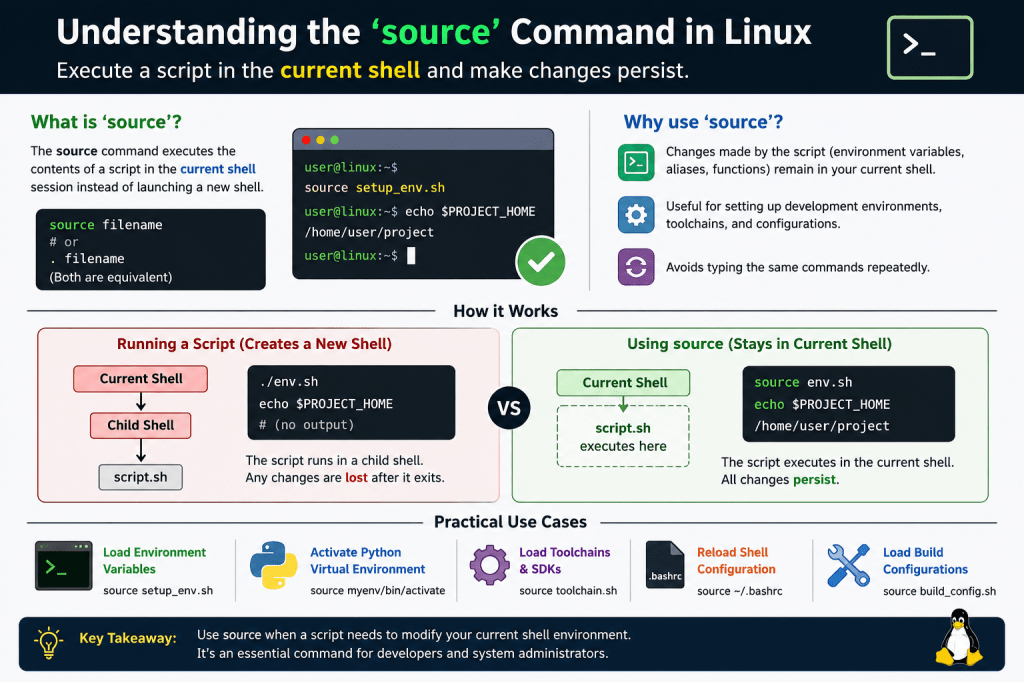
What Happens Internally?
When you run:
./script.sh
Linux creates a new shell process.
Current Shell
|
+—- Child Shell
|
script.sh
Any variables created inside the child shell disappear after it exits.
When you use:
source script.sh
The script executes directly in the current shell.
Current Shell
|
+—- Executes script here
All variables, aliases, and functions remain available after the script finishes.
When Should You Use source?
Use source whenever a script needs to modify your current shell environment.
Common scenarios include:
- Setting environment variables
- Activating Python virtual environments
- Loading compiler toolchains
- Configuring embedded Linux build environments
- Reloading
.bashrcor.profile - Loading aliases and shell functions
- Initializing SDKs such as Android SDK or Yocto build environments
Key Takeaways
sourceexecutes a script in the current shell.- Environment changes remain available after the script completes.
- It is commonly used to load environment variables, aliases, functions, and development toolchains.
- Running a script normally (
./script.sh) starts a new shell, so any environment changes are lost when the script exits.
Understanding the difference between executing a script and sourcing it can save time and prevent confusion, especially when working with embedded Linux, DevOps pipelines, Python virtual environments, or complex build environments.



Leave a Reply