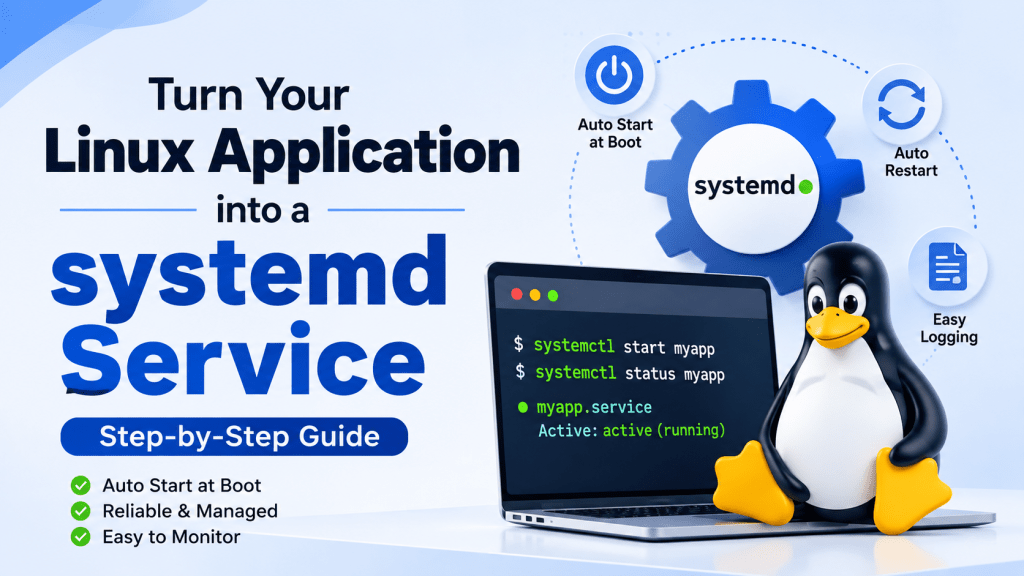
When developing Linux applications, simply executing a program from the terminal isn’t always enough. In production systems, applications should start automatically during boot, restart if they crash, and continue running in the background without user intervention.
This is where systemd services become extremely useful.
In this article, we’ll learn how to convert any Linux application into a Linux service using systemd, with a practical example that you can immediately use in your projects.
What is a Linux Service?
A Linux service is simply a program that runs in the background (daemon) and is managed by the operating system.
Instead of manually executing:
./my_application
you can start it using:
sudo systemctl start myapp
The operating system will then take care of:
- Starting the application during boot
- Stopping it gracefully
- Restarting it if required
- Monitoring its status
- Logging its output
Why Run an Application as a Service?
There are several advantages:
- Automatically starts after system boot
- Runs without opening a terminal
- Can restart automatically after crashes
- Easy to start and stop
- Centralized logging using
journalctl - Standard deployment method on modern Linux systems
This is especially useful for:
- Embedded Linux devices
- IoT gateways
- Backend servers
- Monitoring tools
- Automation applications
- Custom device software
Step 1: Build Your Application
Assume our application’s executable is this:
/home/user/apps/my_application
Verify that it runs normally:
./my_application
If everything works, we’re ready to create a service.
Step 2: Create a systemd Service File
Create a new file:
sudo nano /etc/systemd/system/myapp.service
Now add the following contents:
[Unit]Description=My Sample ApplicationAfter=network.target[Service]Type=simpleExecStart=/home/user/apps/my_applicationWorkingDirectory=/home/user/appsRestart=alwaysRestartSec=5User=userGroup=user[Install]WantedBy=multi-user.target
Save the file.
Understanding Each Section
[Unit]
Contains general information about the service.
Description=My Sample Application
Provides a human-readable description.
After=network.target
Ensures the service starts only after networking is available.
[Service]
Defines how the application should run.
ExecStart
ExecStart=/home/user/apps/my_application
Specifies the executable to launch.
WorkingDirectory
WorkingDirectory=/home/user/apps
Sets the current working directory before starting the application.
This is useful when your program reads configuration files using relative paths.
Restart
Restart=always
If the application exits unexpectedly, systemd restarts it automatically.
Other options include:
noon-failurealwaysunless-stopped
RestartSec
RestartSec=5
Waits five seconds before restarting.
User and Group
User=userGroup=user
Runs the application using a normal user instead of root.
Running services as root should be avoided unless absolutely necessary.
Step 3: Reload systemd
Whenever a new service file is created, reload the daemon.
sudo systemctl daemon-reload
Step 4: Start the Service
sudo systemctl start myapp
Step 5: Check the Service Status
sudo systemctl status myapp
Example output:
● myapp.serviceLoaded: loadedActive: active (running)Main PID: 2548
If the service is active, everything is working correctly.
Step 6: Enable Automatic Startup
To launch the service every time Linux boots:
sudo systemctl enable myapp
To disable automatic startup:
sudo systemctl disable myapp
Useful systemctl Commands
Start the service:
sudo systemctl start myapp
Stop the service:
sudo systemctl stop myapp
Restart the service:
sudo systemctl restart myapp
Reload configuration (if supported):
sudo systemctl reload myapp
View status:
sudo systemctl status myapp
Viewing Application Logs
One of the biggest advantages of using systemd is centralized logging. Because now your application is part of the system.
To view logs:
journalctl -u myapp
To continuously monitor logs:
journalctl -fu myapp
This is extremely useful while debugging production applications.
Example Project Structure
apps/│├── my_application├── config.json├── logs/└── data/
Service file:
/etc/systemd/system/myapp.service
Best Practices
✔ Use absolute paths in ExecStart
✔ Avoid running services as the root user unless required
✔ Enable automatic restart for production applications
✔ Store configuration files separately from binaries
✔ Use journalctl instead of creating unnecessary log files when appropriate
✔ Test your application manually before converting it into a service
Common Mistakes
Incorrect executable path
ExecStart=/wrong/path/app
The service will fail immediately.
File not executable
Make sure your application has execute permission:
chmod +x my_application
Forgot daemon reload
Whenever you modify a service file, run:
sudo systemctl daemon-reload
Service won’t start after reboot
Don’t forget:
sudo systemctl enable myapp
Conclusion
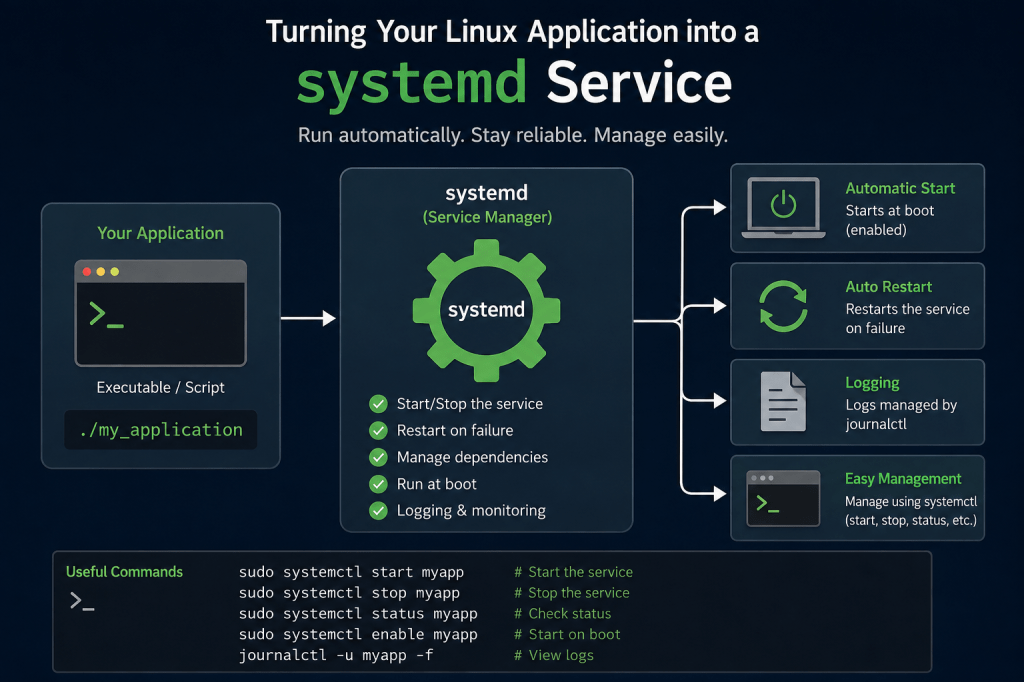
Running your application as a Linux service is one of the first steps toward building production-ready software. Instead of manually launching programs after every reboot, systemd provides automatic startup, process monitoring, centralized logging, and recovery mechanisms with minimal configuration.
Whether you’re developing embedded Linux applications, backend services, or IoT software, learning to create and manage systemd services is an essential skill. With just a simple service file, your application becomes easier to deploy, maintain, and troubleshoot—making it far more reliable in real-world environments.




Leave a Reply